
What This Form Is and is Not:
- This is NOT the LOTO Energy Control Procedure (ECP). The LOTO ECP is the official documented procedure for locking/tagging out a specific machine.
- This IS the LOTO Activity Form a worker completes when they are actively locking/tagging out equipment.
This form creates an audit trail of lockout/tagout activity and provides visibility into when equipment is locked out and returned to service.
Step 1: Log Into the EHS-Dashboard and Navigate to Custom Forms
- Log into the EHS-Dashboard.
- Navigate to the Admin section.
- Select Custom Forms.
Screenshot Opportunity: Admin menu showing Custom Forms
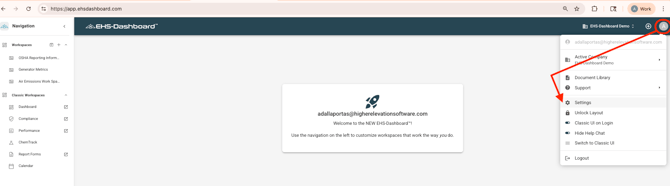
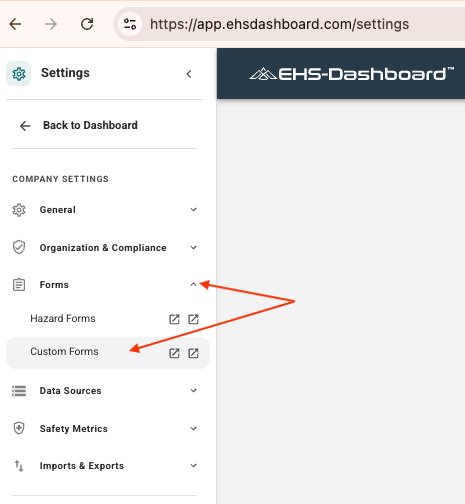
Note: For additional guidance on building Custom Forms (field types, conditional logic, triggers, and layout), refer to the Custom Forms Knowledge Base guides.
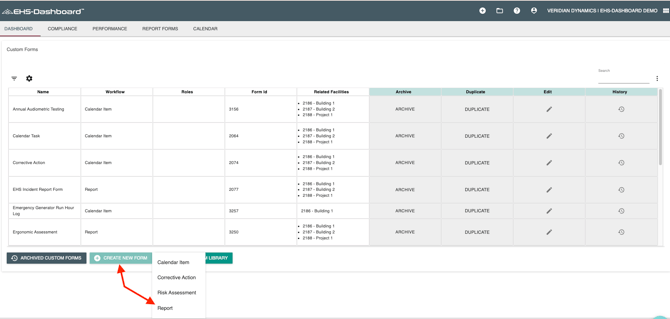
Step 2: Create a New LOTO Activity Form Template
- Click + CREATE NEW FORM.
- Choose Report Form as the form type.
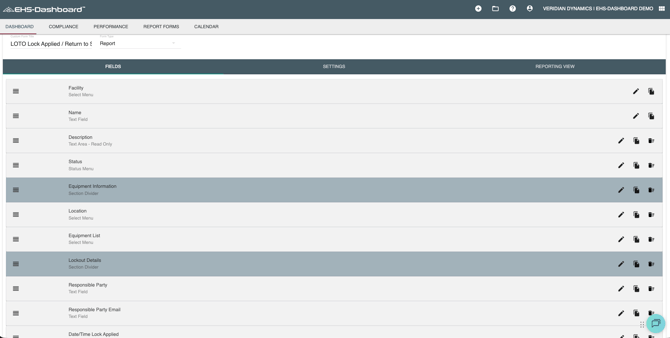
Step 3: Configure the Required Form Fields
-
Enter a form name using a standard naming convention such as:
LOTO Activity Log
LOTO Lockout/Tagout Activity Form
LOTO Lock Applied / Return to Service Form - Add the fields needed to capture key lockout/tagout activity details, including:
Equipment Information:
Equipment Name
Equipment ID / Asset Number
Location / Department
Lockout Details:
Employee Name
Date/Time Lock Applied
Reason for Lockout
Work Order Number (optional)
Lock Number / Tag Number
Photo Upload (Lock/Tag Installed)
Notes / Comments
Optional Approval Fields:
Supervisor Approval (if required)
Supervisor Name
Step 4: Configure the Status Dropdown Options
- Locate the Status dropdown field in the form builder.
- Update the dropdown options to reflect the lockout lifecycle.
Recommended status options:
Lock Applied
Work In Progress
Still Locked
Back In Service
Note: Status tracking is critical because it creates a clear audit trail, supports real-time visibility, and enables automated notifications.
Screenshot Opportunity: Status dropdown option list being edited
Step 5: Configure Email Notification Triggers (Recommended)
To ensure visibility and accountability, configure email notifications using triggers tied to the Status field.
Recommended notification rules:
When Status = Lock Applied:
Notify EHS Manager
Notify Facility Manager
Notify Maintenance Supervisor (optional)
When Status = Back In Service:
Notify EHS Manager
Notify Facility Manager
Note: Notifications help prevent situations where equipment is locked out but never properly closed out in the system.
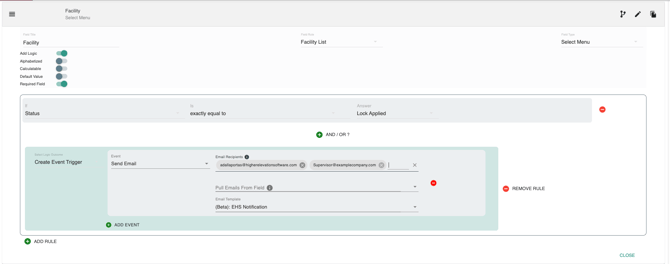
Note: For step-by-step instructions on configuring email notifications and email templates, refer to the Email Alerts Help Guides.
Step 6: Save the Form Template
- Click Submit & Exit
- Confirm the LOTO Activity Form is now available for use in the environment.
Screenshot Opportunity: Form list showing the newly created LOTO Activity Form
Step 7: Set Up QR Code Access for Employees
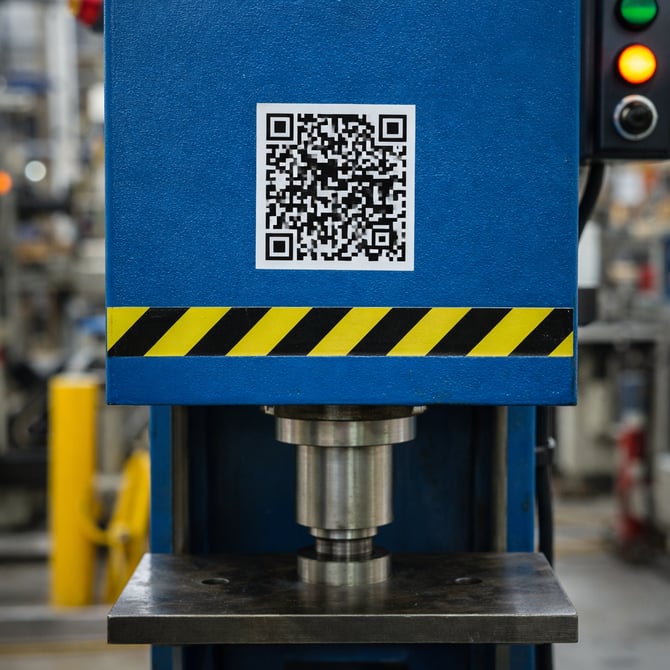
To make the workflow fast and easy for employees on the floor, a QR code can be posted directly on the equipment.
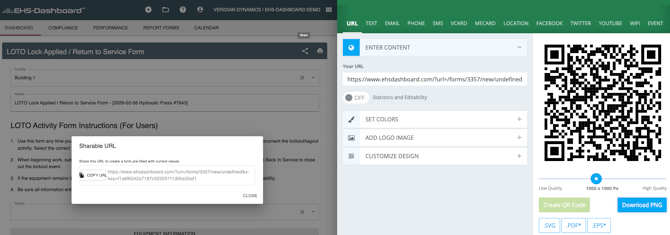
- Configure the form so QR code link opens a pre-initialized with the specific equipment already selected.
- Copy the link and generate a QR code that links directly to a new submission of the LOTO Activity Form.
- Print and post the QR code near the machine (ideally next to the posted ECP).
- Instruct employees to scan the QR code any time lockout/tagout is initiated.
Note: QR codes must be created and configured separately. For step-by-step instructions, refer to the QR Code Setup Guide.
Step 8: Recommended Workflow for Lockout/Tagout Activity Tracking
- Worker scans the QR code at the machine.
- The LOTO Activity Form opens with the correct equipment pre-selected.
- Worker submits a Lock Applied entry (including photos if required).
- EHS and Facility managers receive an email notification.
- When work is complete, the worker opens the form using the link in the lockout notification email and updates the Status to Back In Service.
- The EHS-Dashboard maintains a permanent record of the activity.
This workflow ensures lockout/tagout activity is consistently documented, visible to leadership in real time, and fully auditable for compliance purposes.