
Note: This guide is a LOTO-specific version of the Managing Tasks Help Docs. For full task management functionality, reference: Managing Tasks
Step 1: Open a New LOTO ECP Form
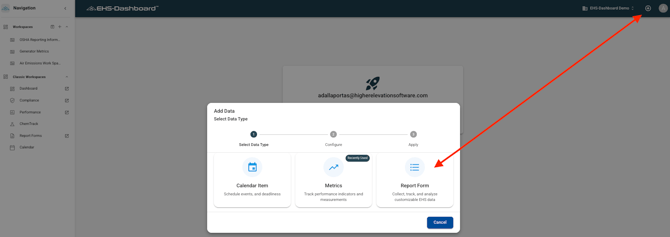
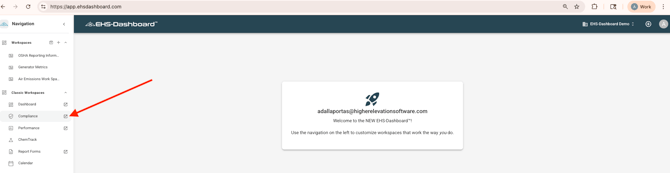
- Navigate to the Compliance Matrix requirement associated with Lockout/Tagout (if applicable), OR click the “+” icon at the top of the page and then Report Form.
- Select the LOTO ECP form to open a new record.
Step 2: Enter the ECP Procedure Steps and Photos
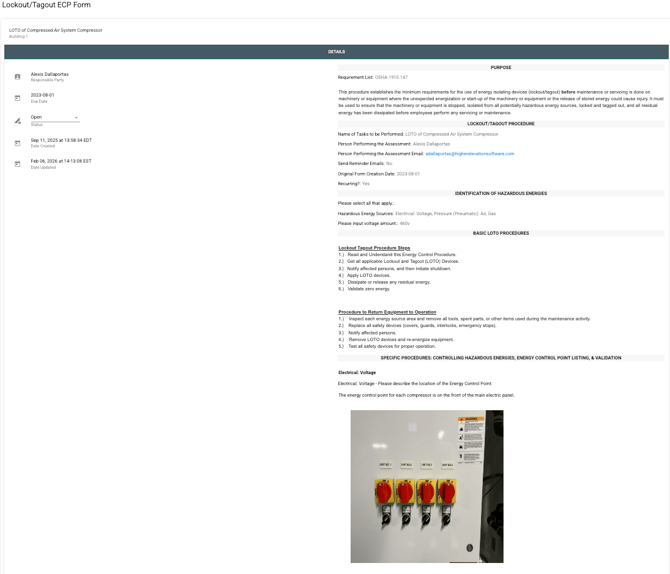
- Complete all required equipment and procedure information.
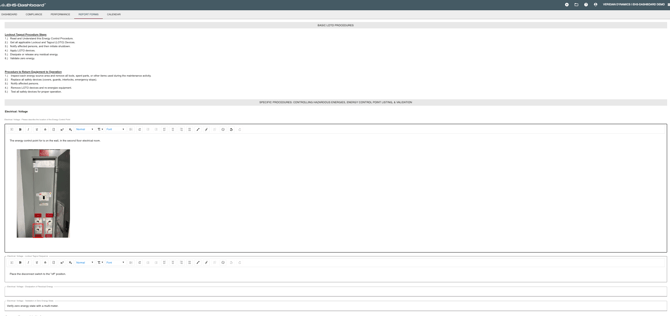
- Enter the procedure steps for the lockout/tagout process.
- Add photos for each procedure step to ensure employees can correctly identify disconnect locations, valve positions, and lock placement points.
Step 3: Configure the Due Date and Recurring Schedule
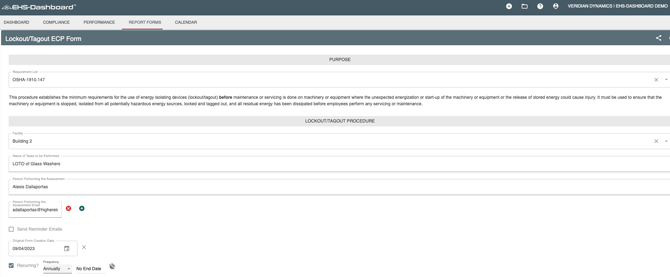
- Set the due date for the first review period.
- Configure the recurring schedule (Annual, Triennial, or custom schedule).
- Assign the action item to the appropriate responsible party (ex: EHS Manager, Facility Manager, Safety Coordinator, or Maintenance Supervisor).
Step 4: Save and Generate the ECP Record
- Click Submit & Exit to generate the ECP record.
- Confirm the recurring action item is created and will appear in the Report Forms list and in the associated requirement as applicable.

Step 6: Print and Post the LOTO ECP at the Equipment
Once the ECP record is complete, print and post it at the machine so it is easily accessible during lockout/tagout activities.
Option 1: Print from the ECP Record
- Open the ECP record using the Edit button.
- Click the Print icon in the top right corner.
Option 2: Expand and Create a Branded ECP Document
- Click Expand to view the ECP record in full screen.
- Take a screenshot of the ECP content (excluding Supporting Documents, Related, and Comments).
- Paste the screenshot into a company-branded ECP template for printing.
Next Step
Once your LOTO ECP is created and scheduled for review, you can build a Lockout/Tagout Activity Form to track lockout events and notify EHS and Facility leadership when equipment is locked out or returned to service