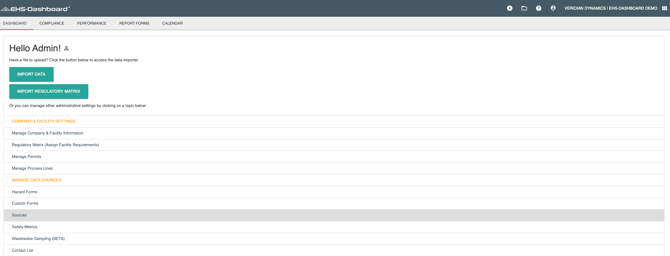
Before adding Chemical Usage data to your EHS-Dashboard™ it is important to first configure a master list of Materials and Constituents. This enables the EHS-Dashboard™ to calculate Air Emissions and total Constituent use based on your Chemical Usage inputs.
When setting up materials in the EHS-Dashboard™, especially when SDS data is readily available in spreadsheet format or when configuring multiple materials at once, the Bulk Material Configuration feature offers an efficient alternative to manual entry. This two-step import process streamlines data setup and reduces errors.
Step 1: Materials Create - Creation of material part numbers, names, purchase units of measure, and specific gravity or density for liquids.
Step 2: Constituent Setup - Defines the constituents and their percentages for the materials created in Step 1
Each Material must have at least 1 Constituent - even if it is 100% of the material. You can easily import this data in two separate files: One for Materials and One for Constituents
To complete this Step 2 and import a Constituent Setup spreadsheet, take the following steps:
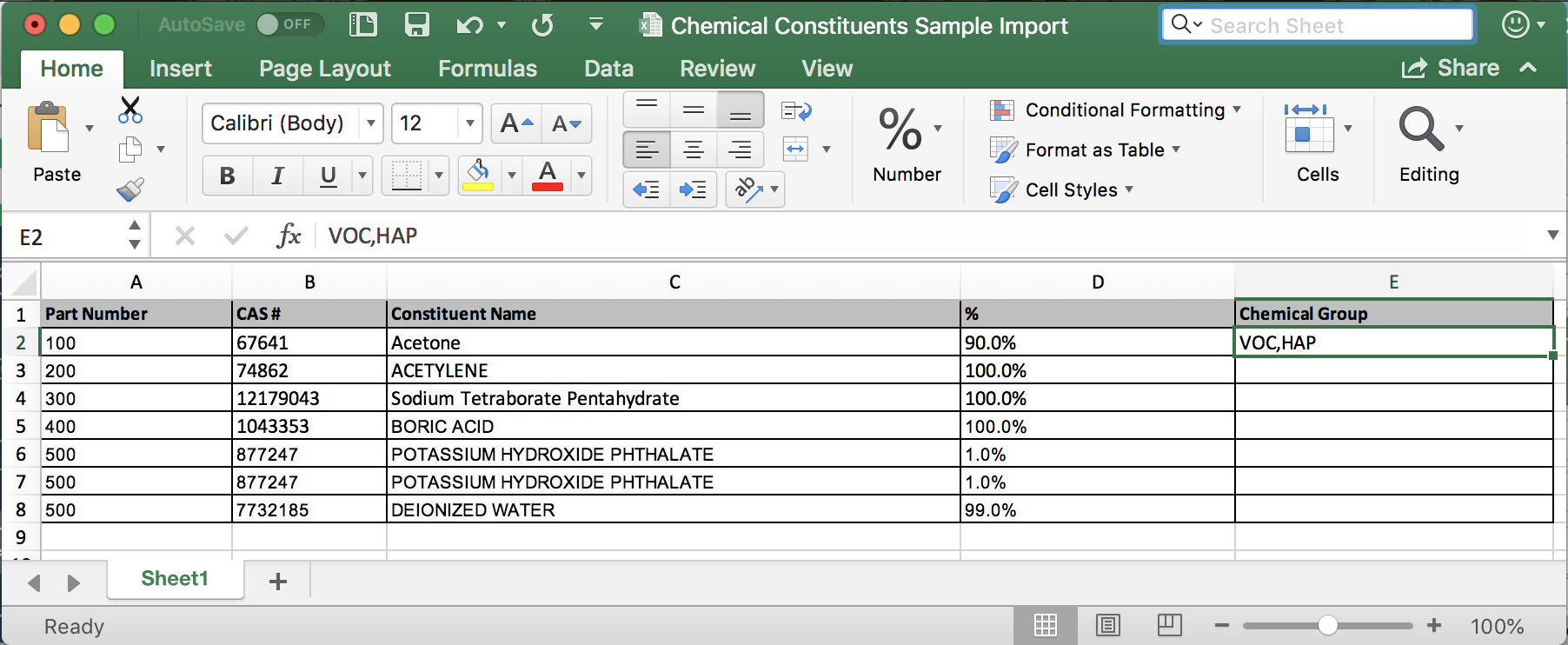
1. Create a spreadsheet with the column headers listed below: (Click HERE for a link to the example Constituent Setup Template)
- Part Number
- CAS #(s) - Note: if a material has multiple ingredients, list each on its own line
- Constituent Name(s) - Note: if a material has multiple ingredients, list each on its own line
- Constituent % (either low and high percentages or just the percentage given)
- Chemical Group - Note: Make sure this is a comma delimited list with no spaces)
- Supported Chemical Groups:
- VOC
- HOC
- Greenhouse Gas
- HAP
- Acid
- HYC
- Supported Chemical Groups:
NOTE: The "Part Number" column is the key which links each material with the right constituents
2. Save the file to your computer. An example file is shown below:
3. In your EHS-Dashboard™ click on the company name in the upper right corner of the screen
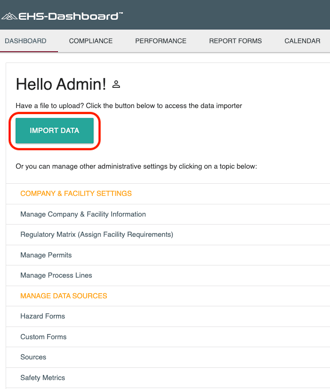
4. Click "Import Data":
5. Click "Upload Document":

6. Follow these steps in the Document Import Wizard to complete the upload:
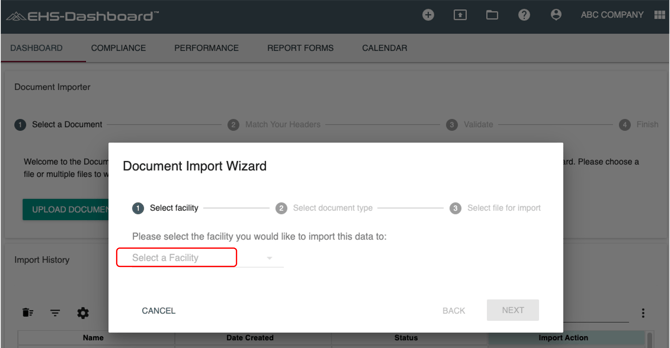
- Use the drop down for "Select a Facility" and choose the facility you are uploading data to, then click "Next":
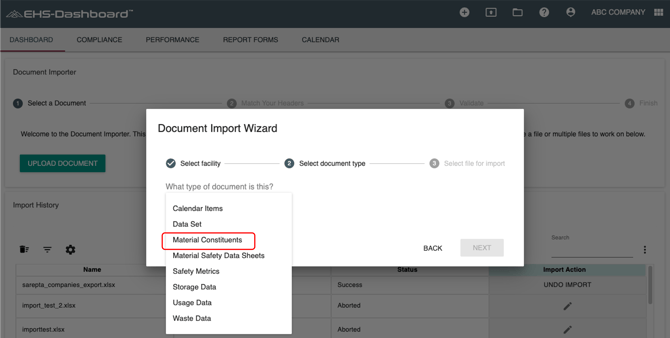
- Use the dropdown menu for "Select Document Type" to select "Material Constituents", then click "Next":
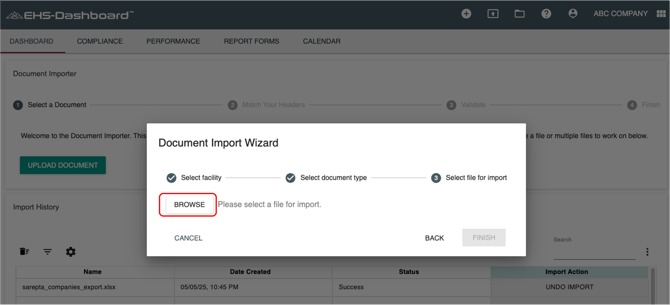
- Now click "Browse" to locate the file and upload it. Once attached, click "Finish":
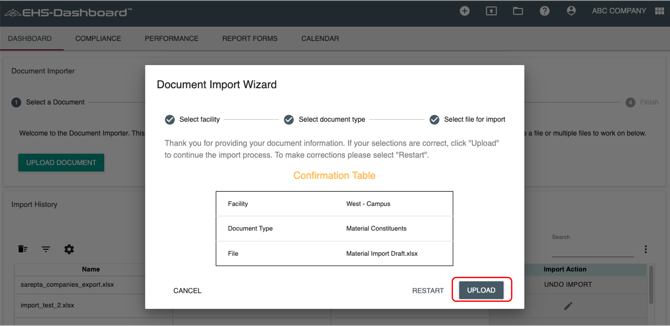
- Click "Upload" if the confirmation table is correct. Or click "Restart" if anything needs to be changed:
7. Once your file is uploaded to the EHS-Dashboard™ - follow the remaining steps to complete your import.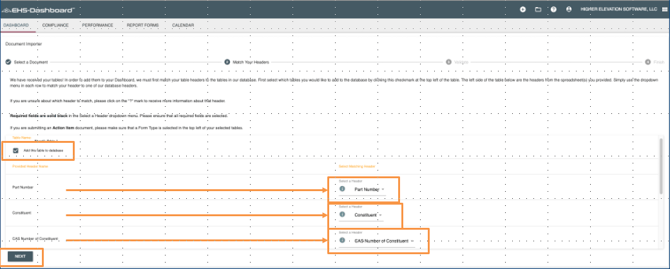
8. Click "Next" to finish your upload. Your bulk source material setup is now complete and you can view a list of your materials in the Admin section under Sources.