
1. Navigate to the New UI by opening your environment and navigating to the New UI by clicking on the Profile icon in the top right corner and then select 'Switch to New UI' from the list.

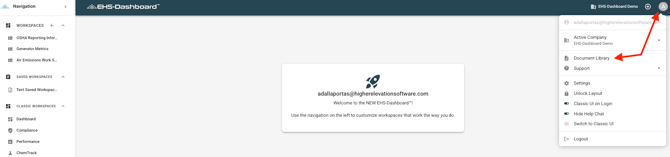
2. Open Account Settings once in the New UI by going to the upper right corner of the screen and clicking Account settings and then Document library.
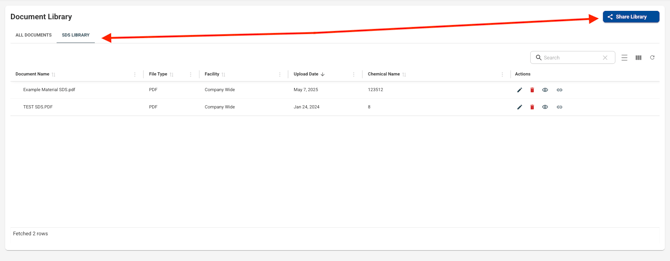
3. Generate the Shareable Link from inside the SDS Library view by clicking the Share Library button. The link will be automatically copied for you!
The copied public link can then be used as needed:
• Post it on an internal intranet site!
• Share it with employees, contractors, or other stakeholders!
• Convert it into a QR code with any free online QR code generator to make access even easier!