
Step 1: Log Into the EHS-Dashboard and Start a New Form
-
Log into the EHS-Dashboard.
-
Click the + icon in the upper right corner.
-
Select either Calendar Item or Report Form.
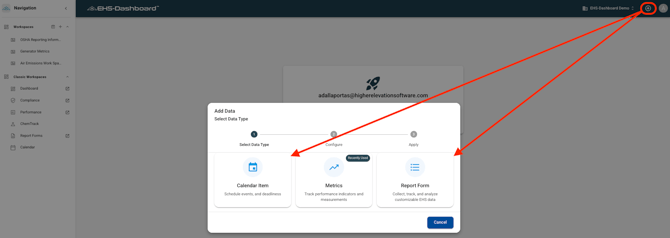
4. Select the form you want from the form list.
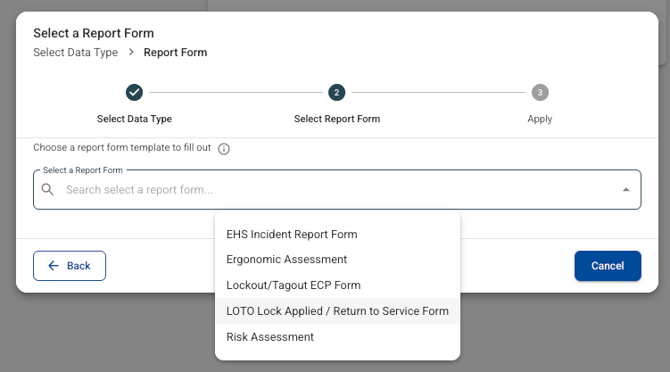
Step 3: Pre-Initialize the Form Fields (Recommended)
-
Fill out any information you want pre-initialized for future users, such as:
Name
Location
Equipment ID
Department
Dropdown list selections
Note: Pre-initialized fields reduce data entry errors and ensure consistent tracking across the facility.
Step 4: Copy the Form URL Using the Share Button
-
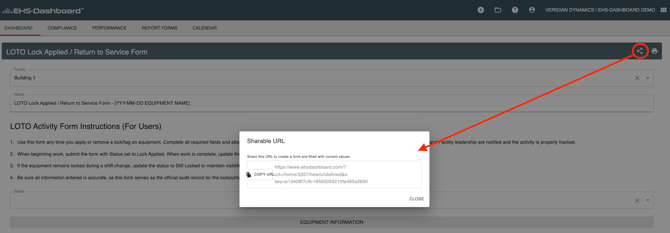
Click the Share icon in the upper right corner of the form and select COPY URL.
Screenshot Opportunity: Share icon and COPY URL option
Step 5: Generate the QR Code Using an Online Tool
-
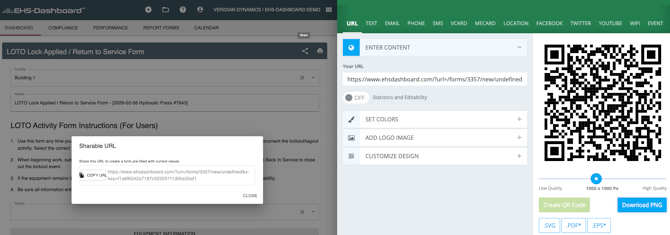
Open a free QR code generator tool online.
-
Paste the copied URL into the generator.
-
Generate the QR code.
Step 6: Download and Post the QR Code
-
Download the QR code image file.
-
Print the QR code.
-
Post the QR code in the appropriate area of your facility (ex: equipment, workstations, inspection points, or permit boards).
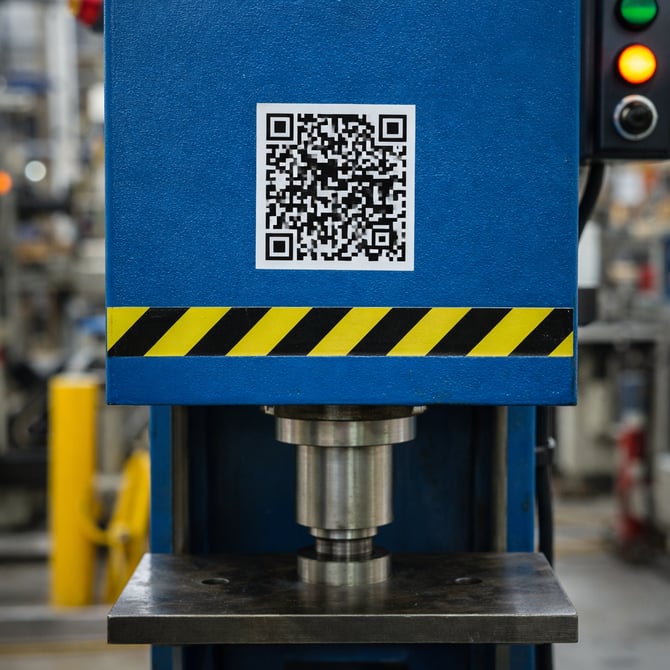
Outcome
Once implemented, QR codes allow employees to quickly access the correct form, improve reporting consistency, and support real-time visibility into facility activity.