
Step 1: Enter a Workspace
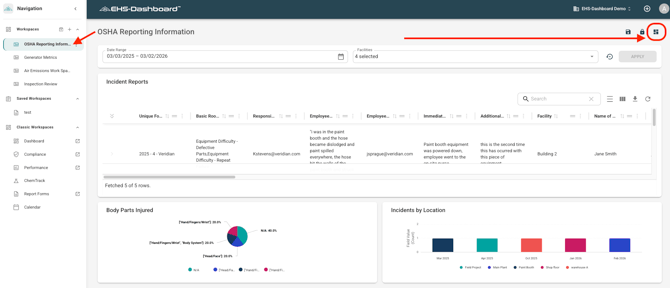
Click on the Workspace where you would like to add a widget.
Step 2: Open the Widget Manager
- Click the Manage Widgets icon in the upper right corner.
-
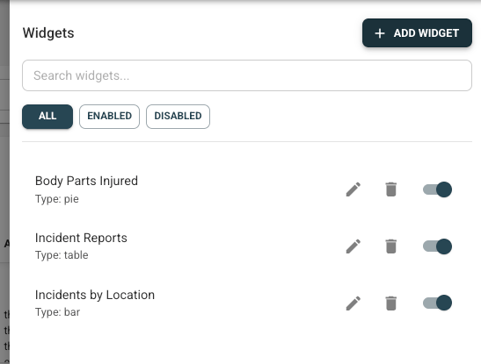
Click + ADD WIDGET.
Step 3: Select a Data Source
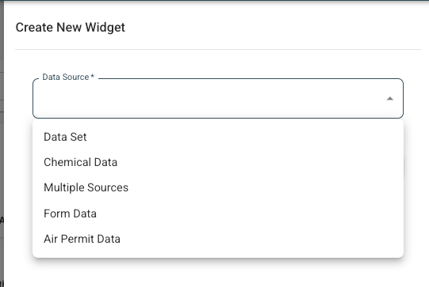
Choose the Data Source for your widget:
-
Data Set - Metric data
-
Chemical Data - Chemical usage, storage, and waste data
-
Form Data - Data entered through custom forms
-
Air Permit Data - Emission and operational limit tracking data
-
Multiple Sources - Combine multiple data sets in a single widget. Detailed configuration instructions for Multi-Series widgets are provided later in this guide.
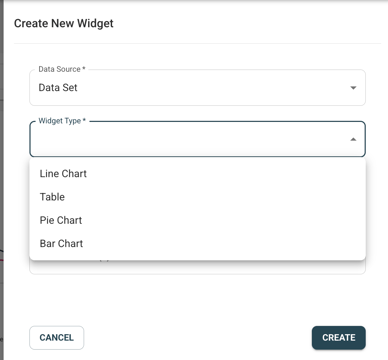
Step 4: Select a Widget TypeChoose the visualization format:
-
Line Chart - Displays trends over time
-
Table - Displays structured tabular data
-
Pie Chart - Displays proportional breakdown of a whole
-
Bar Chart - Compares values across categories
-
Multi-Series - Combines multiple data sources or chart types in one widget. See the Multi-Series Widget Configuration section below for detailed setup instructions.
Step 5: Configure the Widget
Configuration settings vary based on the widget type selected.
Line Chart Configuration:
Configure the following chart parameters:
-
Data Source Parameter - Choose the data sources to be included in the chart.
-
Chart Title - Give your chart a descriptive name.
-
X-Axis- Choose the data display timeline, such as monthly, quarterly, or yearly.
-
Y-Axis - Choose which part of the source data you would like to group the chart by.
-
Data Analysis Type - Choose whether you would like to display the Count, Sum, Average, Max, or Min of the data set.
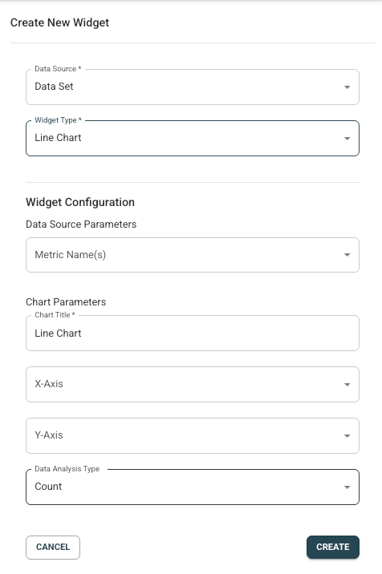
Table Widget Configuration:
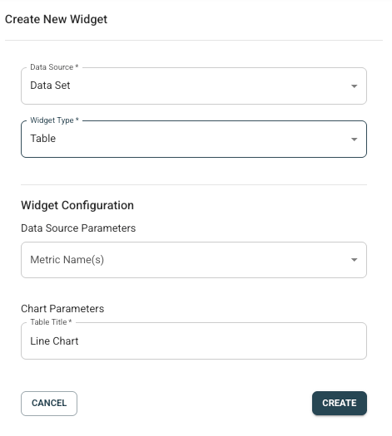
Well suited for displaying form data.
Configure the following table parameters:
-
Data Source Parameters - Choose the data sources to be included in the table. If Form Data is your source, you will be able to choose which form fields to include in your widget.
-
Table Title - Give your table a descriptive name.
Pie Chart Configuration:
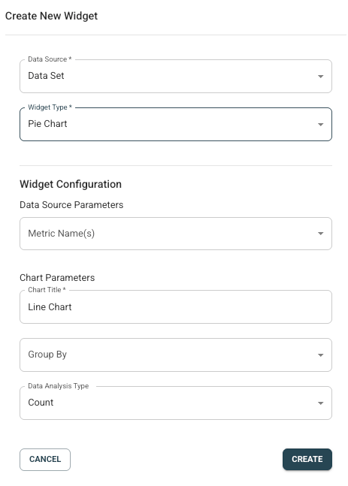
Configure the following chart parameters:
-
Data Source Parameters - Choose the data sources to be included in the chart. If Form Data is your source, you will be able to choose which form fields to include in your widget.
-
Chart Title - Give your chart a descriptive name.
-
Group By - Choose how you would like to group your chart data. Options for aggregation vary based on data source type.
-
Data Analysis Type - Choose whether you would like to display the Count, Sum, Average, Max, or Min of the data set.
Bar Chart Configuration:
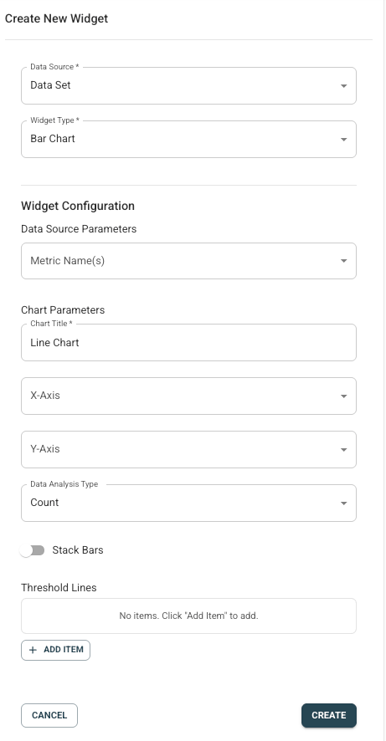
Configure the following chart parameters:
-
Chart Title - Give your chart a descriptive name.
-
X-Axis - Choose the data display timeline, such as monthly, quarterly, or yearly.
-
Y-Axis - Choose which part of the source data you would like to group the chart by.
-
Data Analysis Type - Choose whether you would like to display the Count, Sum, Average, Max, or Min of the data set.
Optional settings:
-
Choose whether you would like the bars to be stacked.
-
Add threshold lines as needed.
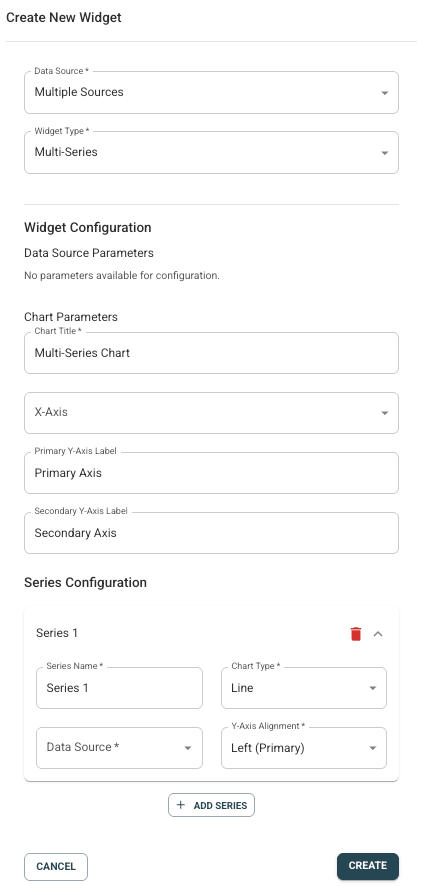
Multi-Series Widget Configuration:
-
Select Multi-Series as the widget type.
-
Configure the following:
-
Chart Title - Give your chart a descriptive name.
-
X-Axis - Choose the data display timeline, such as monthly, quarterly, or yearly.
-
Primary Y-Axis Label - Name the primary Y-Axis as desired.
-
Secondary Y-Axis Label - Name the secondary Y-Axis as desired.
Series Configuration:
For each series, repeat the following steps:
-
-
Series Name - Give the series a descriptive name.
-
Chart Type - Indicate how you would like to visualize that data series.
-
Data Source - Indicate if the series data source is a Data Set or Form Data.
-
Y-Axis Alignment - Choose whether this series should align to the primary or secondary Y-Axis.
-
Y-Axis Field - Choose which part of the source data you would like to group the chart by.
-
Data Analysis Type - Choose whether you would like to display the Count, Sum, Average, Max, or Min of the data set.
-
Repeat for each additional series you would like to include.
Step 6: Create the Widget
When configuration is complete, click CREATE in the lower right corner of the window.
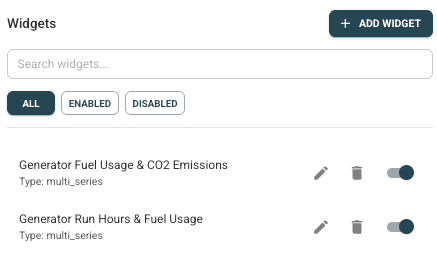
The widgets that have been created will be visible in the Widget list. From here, widgets can be edited, archived, or made visible or not visible using the toggle.
Step 7: Arrange Widgets in the Workspace
Click back into your workspace and refresh your page. The widgets will now be visible.
To resize or reposition widgets:
-
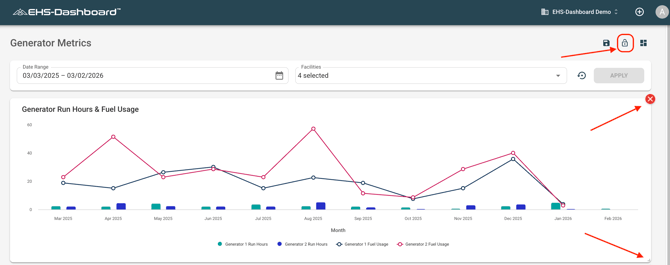
Click the Lock icon in the upper right to unlock the layout.
-
Drag widgets to reposition them within the workspace.
-
Resize widgets by clicking and dragging the lower right corner.
Note: The red X removes the widget from view within the workspace but does not archive it.
Once the layout is satisfactory, click the Lock icon again to lock the layout.
Outcome
Widgets provide real-time visibility into operational, environmental, and compliance data. Once configured, Workspaces can be used for internal monitoring, leadership reporting, and audit readiness.