
Step 1: Log Into the EHS-Dashboard and Navigate to Custom Forms
- Log into the EHS-Dashboard.
- Navigate to the Admin section.
- Select Forms -> Custom Forms.
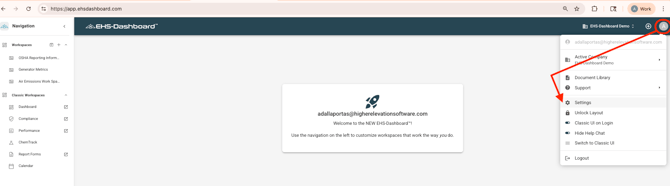
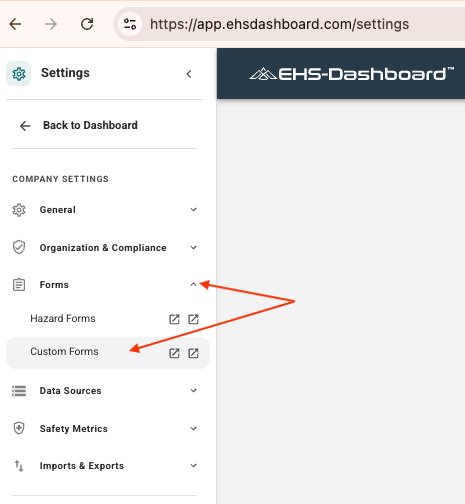 Note: For additional guidance on building Custom Forms (field types, conditional logic, triggers, and layout), refer to the Custom Forms Help Guides:
https://48766036.hs-sites.com/en-us/ehs-dashboard-knowledge-base/custom-forms
Step 2: Create a New Form
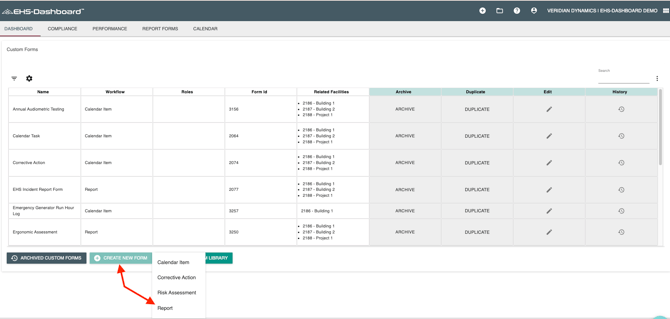
- Click “+ CREATE NEW FORM”
- Choose Report as the form type.
- Name the form using a standard naming convention such as:
Incident Report Form
Safety Incident Report
Incident / Near Miss Report

Step 3: Configure the Required Incident Report Fields
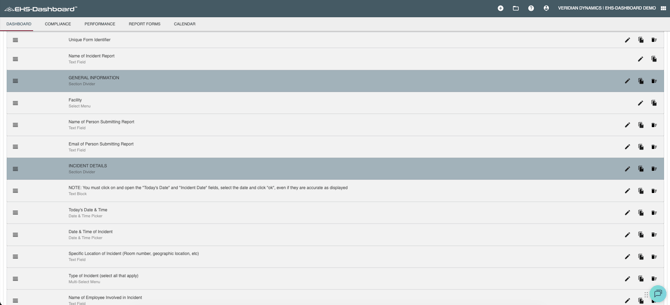
Add the fields needed to capture key incident details.
Example fields to include:
Employee Information:
-
Employee Name
-
Department
-
Supervisor
-
Shift
Incident Details:
-
Date/Time of Incident
-
Location
-
Incident Type
-
Description of Incident
-
Witness Names
-
Immediate Actions Taken
Injury or Illness Information:
-
Injury Type
-
Body Part Affected
-
Medical Treatment Required
Step 4: Add a Corrective Action (CAPA) Trigger Field
-
Add a Yes/No field such as:
Corrective Action Required? -
Add a follow-up text field such as:
Corrective Action Summary -
Apply logic to the Corrective Action Required field so that when Yes is selected, the system triggers creation of a CAPA form and displays the corrective action summary field.
Note: Field logic is required to control when CAPA records are created and to ensure corrective actions are only generated when follow-up is necessary.
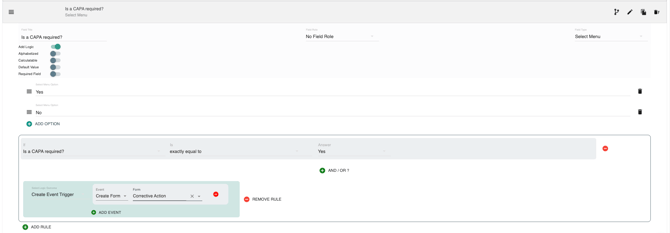
Note: Logic used to trigger CAPA creation, email notifications, metric or material data entries, and additional form generation is configured through form logic rules. For additional guidance on configuring Event Triggers in Custom Forms , refer to this Help Guide.
Step 5: Configure Email Notification Triggers
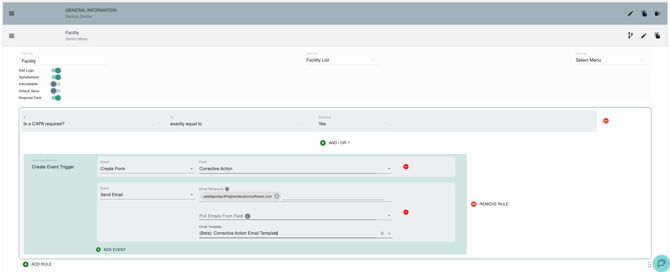
Configure email notifications so leadership is notified immediately when an incident report is submitted.
Recommended notification recipients include:
EHS Manager
Facility Manager
Safety Manager
Supervisor
HR (optional)
Suggested email subject line:
New Incident Report Submitted – Action Required
Note: For step-by-step instructions on configuring email notifications and email templates, refer to the Email Alerts Help Guide:
https://48766036.hs-sites.com/en-us/ehs-dashboard-knowledge-base/email-alerts
Step 6: Save the Form Template
-
Click Save.
-
Confirm the Incident Report Form is now available for use in the environment.
Screenshot Opportunity: Form list showing the newly created Incident Report Form
Outcome
Once implemented, employees can submit incident reports consistently, leadership will be notified automatically, and CAPAs can be generated when corrective action is required, ensuring follow-up actions are properly tracked.