
Step 1: Log Into the EHS-Dashboard
-
Log into the EHS-Dashboard using your credentials.
Step 2: Create a New Workspace
-
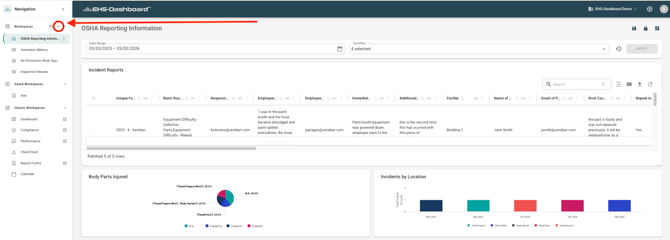
Locate Workspaces in the left-side navigation panel.
-
Click the + icon next to Workspaces.
-
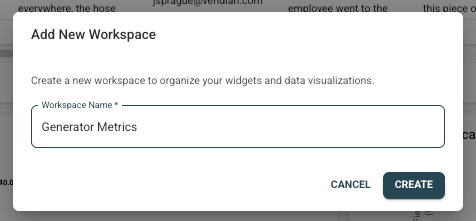
Enter a name for your new Workspace.
-
Click Create.
Step 3: Confirm Workspace Creation
-
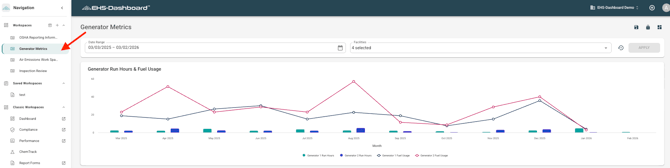
Verify that the new Workspace now appears in the Workspaces list.
-
Click into the Workspace to begin adding widgets and configuring dashboard views.
Step 4: Edit or Archive a Workspace
-
Locate the Workspace in the left-side navigation panel.
-
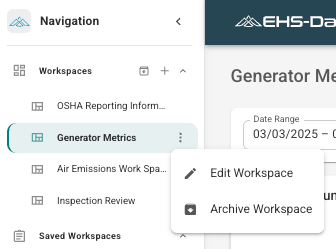
Click the three dots next to the Workspace name.
-
Select Edit Workspace to rename the Workspace, or select Archive Workspace to remove it from active view.
Step 5: View Archived Workspaces
-
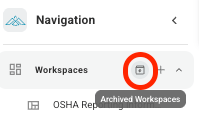
Click the Archived Workspaces icon next to Workspaces in the navigation panel.
-
Select an archived Workspace to restore it as needed.
Outcome
Workspaces can be created, organized, edited, and archived to support clear dashboard management. Once created, a Workspace is available for adding widgets and monitoring real-time operational, environmental, or compliance data.