1. Click on the plus sign for "Add Data" located in the top right of the navigation bar :
2. Click “Calendar Item” in the add data wizard:

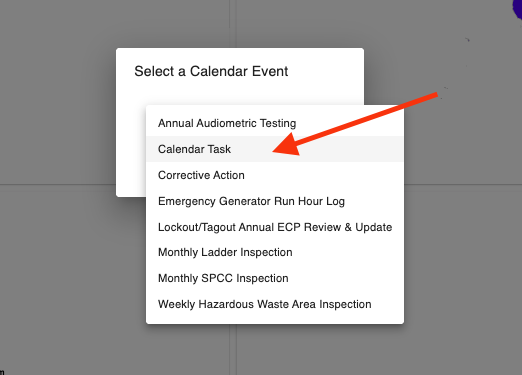
3. Use the drop down menu to select the appropriate Calendar Event for the task you are adding:
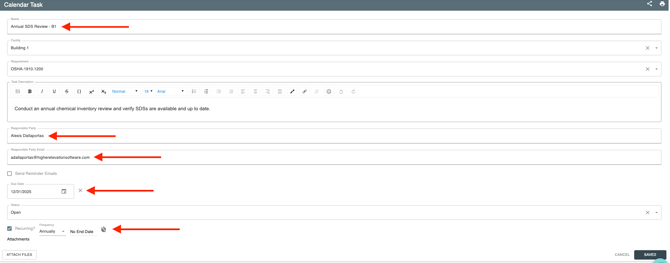
4. Complete the form, ensuring you include a Name, Responsible Party, and Due Date, and indicate whether the event is recurring. Be sure to click the “Save Changes” button in the bottom right corner of the form before exiting.
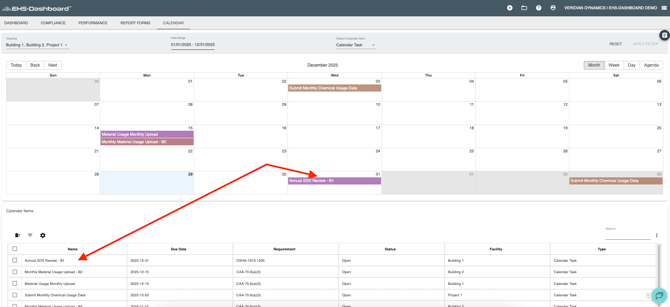
5. Once saved, the item will be added to your Calendar and Calendar Items list.