
Step 1: Log Into the EHS-Dashboard and Navigate to Custom Forms
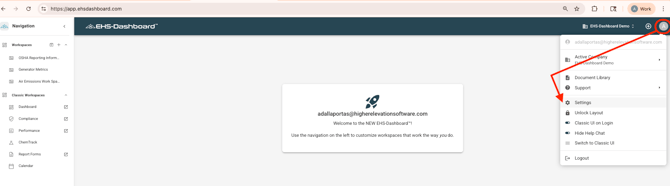
- Log into the EHS-Dashboard.
- Navigate to the Admin section.
- Select Forms -> Custom Forms.
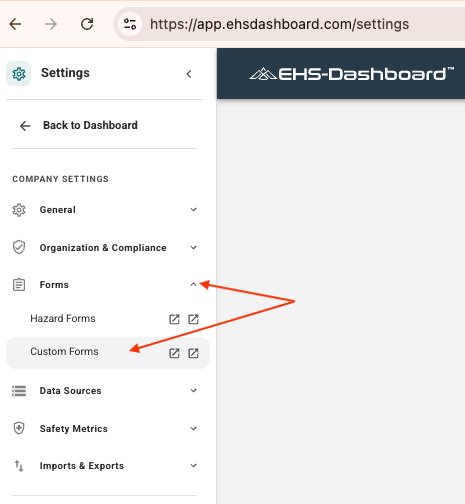 Note: For additional guidance on building Custom Forms (field types, conditional logic, triggers, and layout), refer to the Custom Forms Help Guide:
https://48766036.hs-sites.com/en-us/ehs-dashboard-knowledge-base/custom-forms
Step 2: Create a New Form
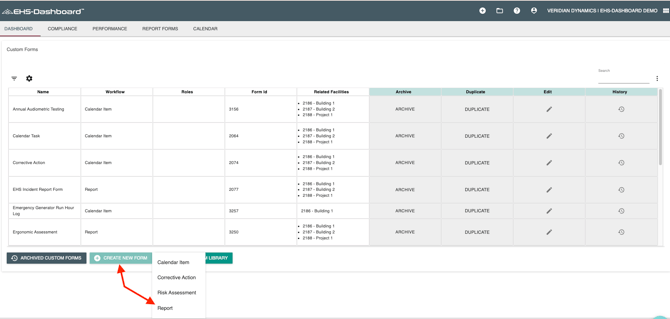
- Click “+ CREATE NEW FORM”
- Choose Report as the form type.
Note: A Report Form is recommended because the ECP serves as the master procedure record for the equipment.
Step 3: Name the Form
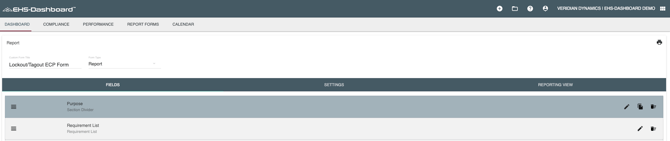
- Enter a form name such as:
LOTO Energy Control Procedure (ECP)
LOTO ECP – Equipment Procedure Form - Add a short description (optional), such as:
“This form is used to document the official lockout/tagout procedure for each piece of equipment.”
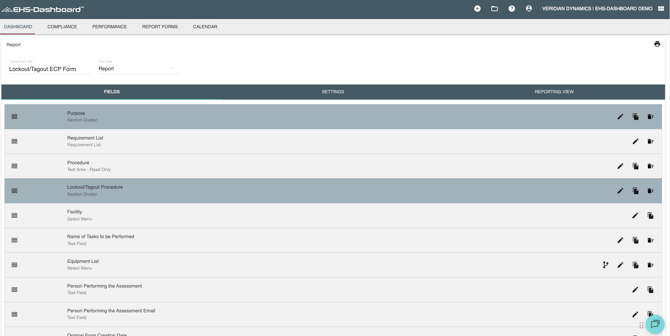
Step 4: Build the LOTO ECP Fields
Add the fields needed to capture the full energy control procedure. Recommended fields include:
Equipment Information:
-
Equipment name
-
Equipment ID / asset number
-
Facility / department
-
Equipment location
Personnel Information:
-
Authorized employees
-
Affected employees
-
Supervisor / owner
Energy Source Information:
-
Energy sources (electrical, pneumatic, hydraulic, thermal, mechanical, chemical, gravity, etc.)
-
Energy isolation points
-
Stored energy hazards
Procedure Steps (Photos Required for Each Step):
-
Shutdown steps
-
Isolation steps
-
Lock placement steps
-
Stored energy release steps
-
Verification steps
-
Return-to-service steps
Note: Each procedure step should be created as a Text Area field so users can enter detailed instructions and insert supporting photos directly into each step (ex: disconnect locations, valve positions, and lock placement points).
Step 5: Add Optional Logic or Triggers (If Needed)
- Add any additional required fields.
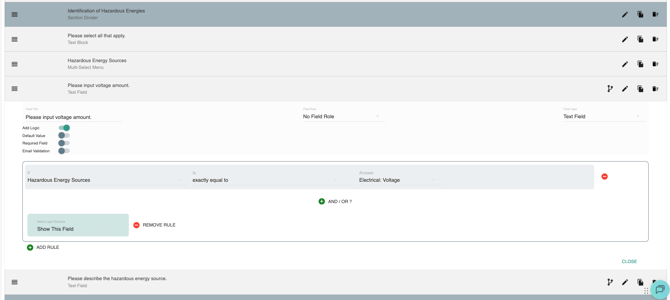
- Add conditional logic (show/hide fields) if needed.
- Add standard email triggers if needed.
Step 6: Save the Form
- Click Save -. Save & Exit (remember to save & keep working frequently as you are building your form!)
- Confirm the form is now available in the environment.
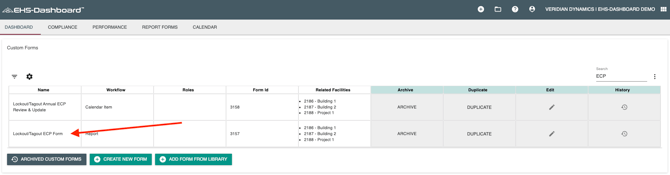 Your LOTO ECP form is now ready to be used to create individual ECP records for equipment!