
Step 1: Log Into the EHS-Dashboard and Navigate to Custom Forms
- Log into the EHS-Dashboard.
- Navigate to the Admin section.
- Select Forms -> Custom Forms.
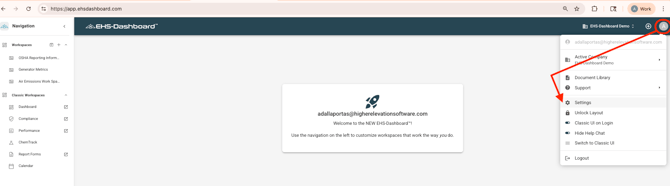
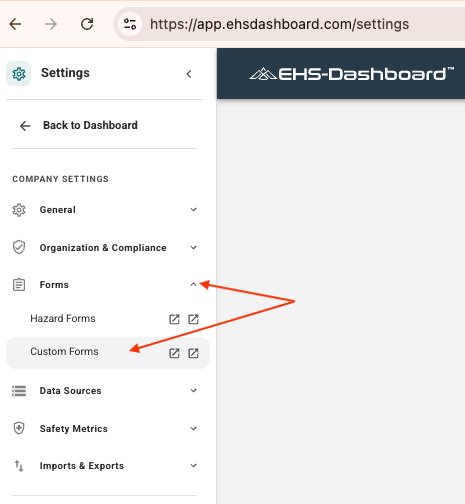 Note: Each environment includes a default CAPA form template that can be edited to meet site-specific needs.
Also, for additional guidance on building Custom Forms (field types, conditional logic, triggers, and layout), refer to the Custom Forms Help Guides:
https://48766036.hs-sites.com/en-us/ehs-dashboard-knowledge-base/custom-forms
Step 2: Open the CAPA Form Template for Editing
-
Locate the CAPA Calendar Item in the form list.
-
Click the pencil icon to edit the form.
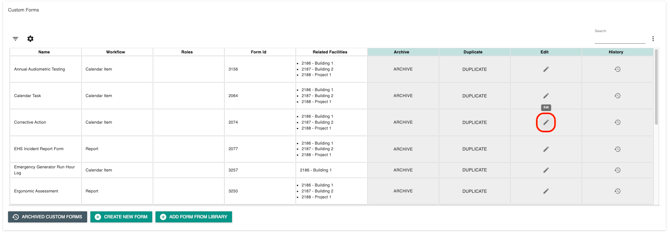 Note: This being a Calendar Item ensures CAPAs appear on calendars, support due dates, and generate reminders.
Step 3: Review and Configure the CAPA Form Fields
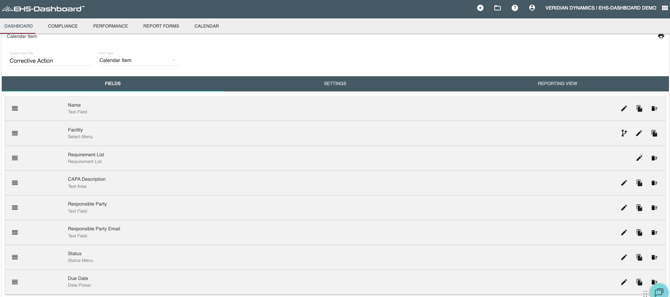
Review the existing fields and update them as needed to support corrective action tracking and closure.
Example fields to include:
CAPA Details:
Corrective Action Description
Corrective Action Type
Due Date
Responsible Party
Completion and Verification:
Completion Notes
Completion Date
Verified By
Verification Notes
Step 4: Configure Email Notification Triggers
Configure email alerts so responsible parties and leadership are notified as CAPAs approach due dates or are completed.
Common CAPA notifications include:
When CAPA Is Overdue:
Notify Responsible Party
Notify EHS Manager
When CAPA Is Completed:
Notify EHS Manager
Notify Supervisor
Note: For step-by-step instructions on configuring email notifications and templates, refer to the Email Alerts Help Guide:
https://48766036.hs-sites.com/en-us/ehs-dashboard-knowledge-base/email-alerts
Step 5: Save the Updated CAPA Form
-
Click Save.
-
Confirm the updates to the CAPA Calendar Item are applied.
Outcome
Once configured, the CAPA Calendar Item provides a consistent, visible, and auditable way to assign corrective actions, track due dates, and document completion across EHS workflows.